How I connected Oracle APEX to a FastAPI backend powered by Oracle Agent Memory, Autonomous Database and OCI Generative AI, building an enterprise-style memory console with Add Memory, Search, Chat Workspace, Models and Project 360.
3.0 Introduction: why bring Agent Memory into APEX?
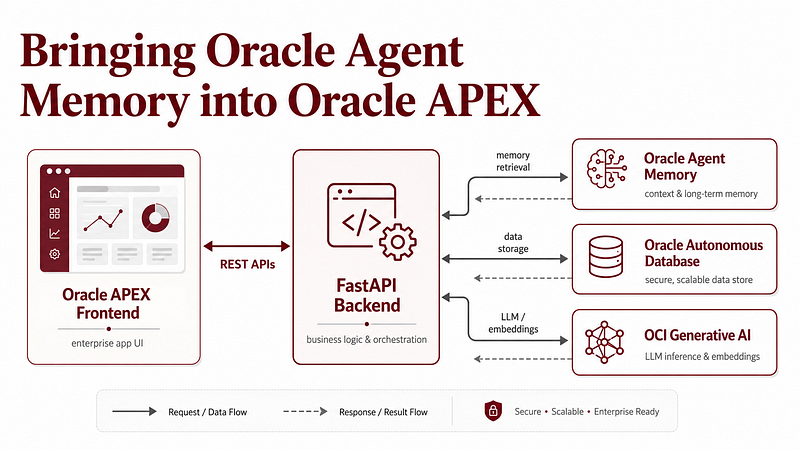
In the first article of this series, I explained the overall architecture of the Oracle Agent Memory Workspace: a persistent memory-aware application built with Oracle Agent Memory, Autonomous Database, OCI Generative AI, FastAPI, React and Oracle APEX.
In the second article, I focused on the backend: how FastAPI became the reusable integration layer connecting Oracle Autonomous Database, OCI Generative AI and Oracle Agent Memory.
Now, in this final part, I want to focus on the Oracle APEX side.
This is where the project becomes especially interesting from an enterprise application perspective.
The React app gave me a polished local workspace. But Oracle APEX allowed me to expose the same backend as a more enterprise-style internal application, with pages for memory creation, semantic search, chat, model management, project-level insight generation and API logging.
The goal was not to rebuild Oracle Agent Memory inside APEX. The goal was to make APEX consume the same backend cleanly.
- APEX became the frontend layer.
- FastAPI remained the integration layer.
- Oracle Agent Memory remained the persistent memory layer.
- Autonomous Database remained the database foundation.
- OCI Generative AI provided embeddings and chat inference.
This separation made the architecture cleaner and easier to extend.
3.1 The APEX architecture
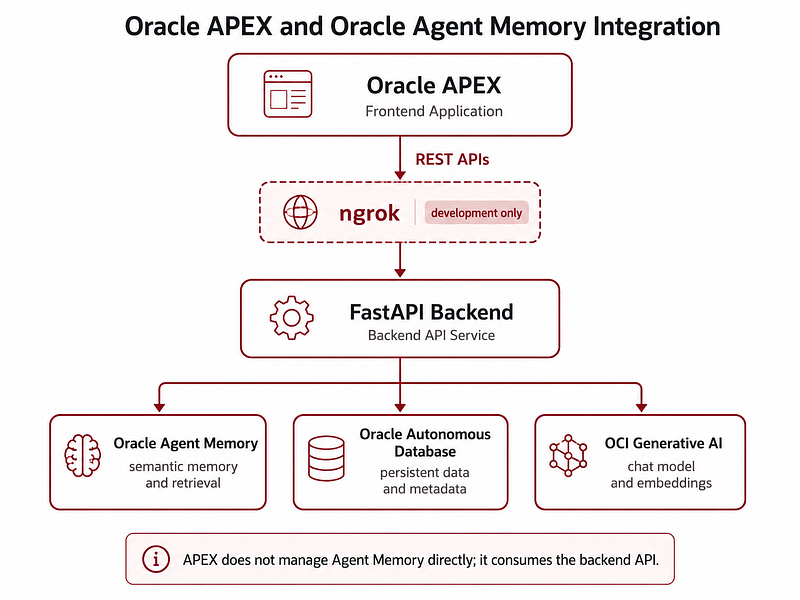
The APEX application is not directly calling Oracle Agent Memory SDK.
Instead, it calls the FastAPI backend using REST. At a high level, the flow is:
User → Oracle APEX → APEX_WEB_SERVICE → FastAPI backend → Oracle Agent Memory → Oracle Autonomous Database → OCI Generative AI.
During development, the FastAPI backend runs locally on my machine. Since APEX runs in the cloud, it cannot call localhost. To solve this during development, I exposed the local FastAPI server using ngrok. So the development flow is:
Oracle APEX → ngrok public URL → local FastAPI backend → Oracle Agent Memory → Autonomous Database → OCI Generative AI.
This is not the final production architecture, but it is very useful for local development and demos. For production, I would replace ngrok with OCI API Gateway and deploy FastAPI on OCI.
3.2 Global API configuration in APEX
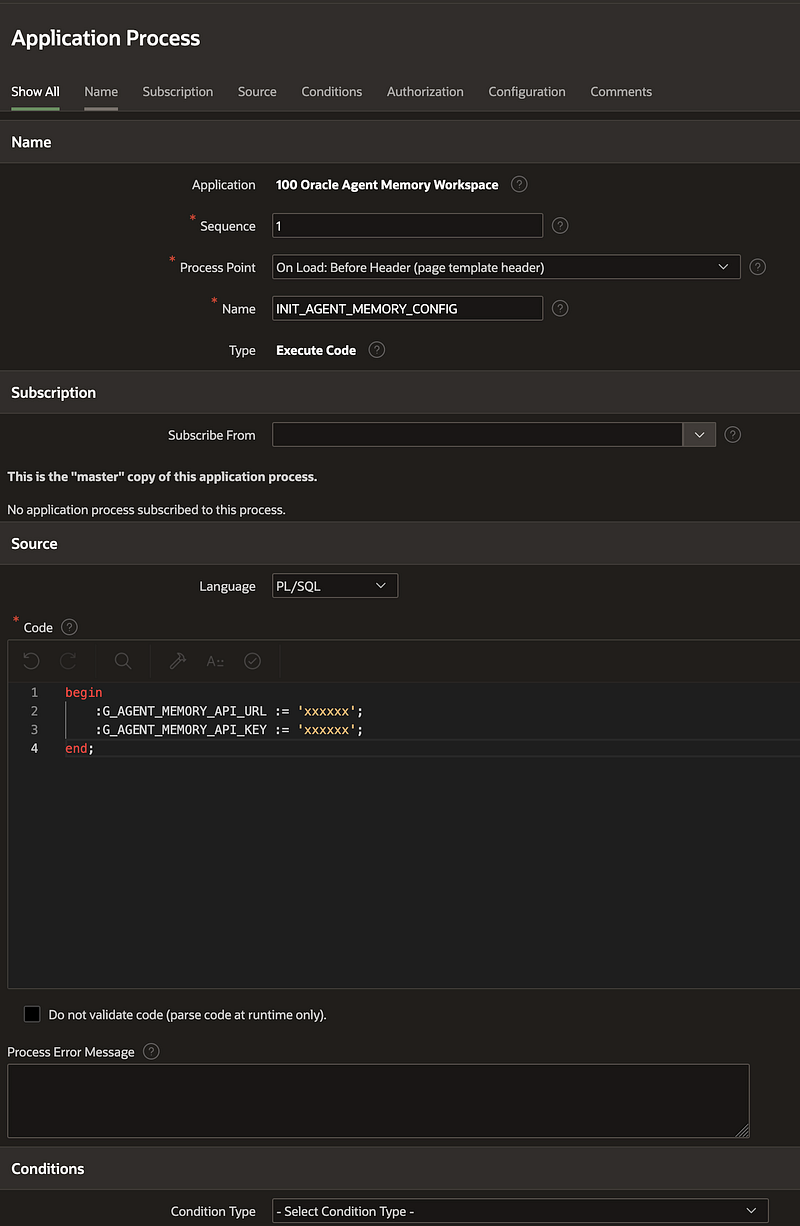
The first thing I needed in APEX was a clean way to store the backend URL and API key.
I created global application items:
- G_AGENT_MEMORY_API_URL
- G_AGENT_MEMORY_API_KEY
These are initialized from an Application Process that runs before page rendering. This means every APEX page can use the same backend configuration without hardcoding the URL and API key in each page.
During development, the URL points to the current ngrok URL. When ngrok changes, I only need to update the global configuration once. This was especially important because the app has multiple pages calling the backend:
- Home calls health and database configuration.
- Add Memory calls the memory creation endpoint.
- Search calls the semantic search endpoint.
- Chat Workspace calls the chat endpoint.
- Models calls the model endpoints.
- Project 360 calls search and chat.
Centralizing the API URL and key avoided duplication and made debugging easier.
3.3 Calling FastAPI from APEX
APEX calls the backend using APEX_WEB_SERVICE.MAKE_REST_REQUEST.
Each call follows the same pattern.
- First, build a JSON payload when needed.
- Set request headers.
- Call the endpoint.
- Log the request and response.
- Parse the JSON response.
- Render the results in APEX regions or collections.
The most important header is X-API-Key. That header must match the key configured in the FastAPI backend.
If the key is missing or incorrect, the backend returns a 401 error with a clear JSON message explaining that the API key header is missing or invalid.
This happened during development a few times, especially after refreshing ngrok or creating a new APEX page. Having clear backend errors made it much easier to understand the problem.
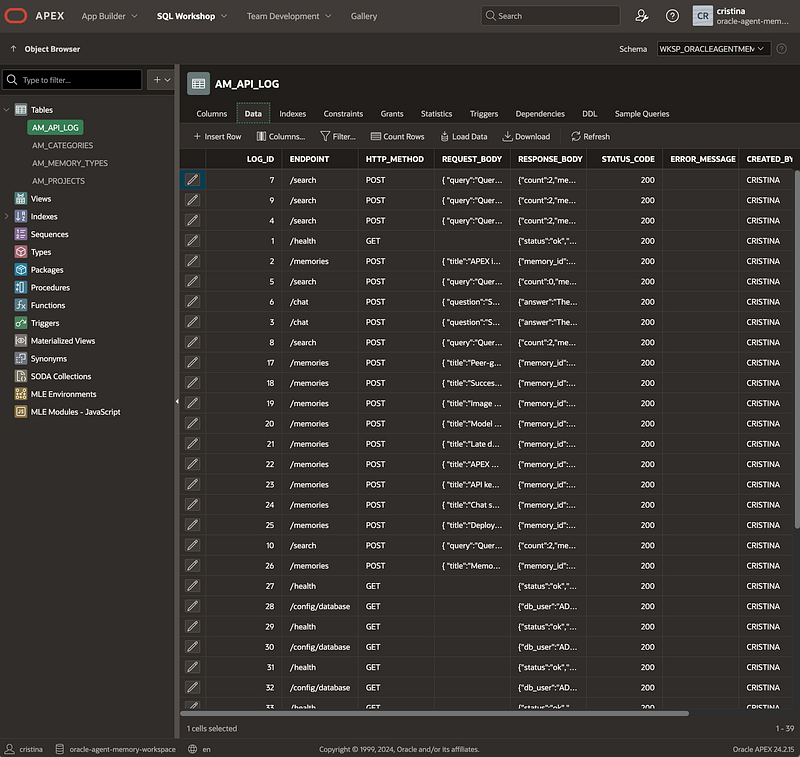
3.4 API logging with AM_API_LOG
One of the most useful APEX additions was the AM_API_LOG table. Every REST call from APEX logs information such as:
- endpoint
- HTTP method
- request body
- response body
- status code
- error message
- created date
- created user
This became extremely useful while debugging. When something failed, I could inspect exactly what APEX sent and what the backend returned.
For example, this helped identify issues like:
- Missing or invalid API key.
- APEX sending
All Categoriesas a real category. - The backend returning
memorieswhile APEX expectedresults. - A select list sending
model_id;model_idinstead of onlymodel_id. - ngrok URL being offline or expired.
- JSON parsing paths not matching the actual backend response.
In a memory-aware application, observability matters. The log table made the APEX side much easier to operate and troubleshoot.
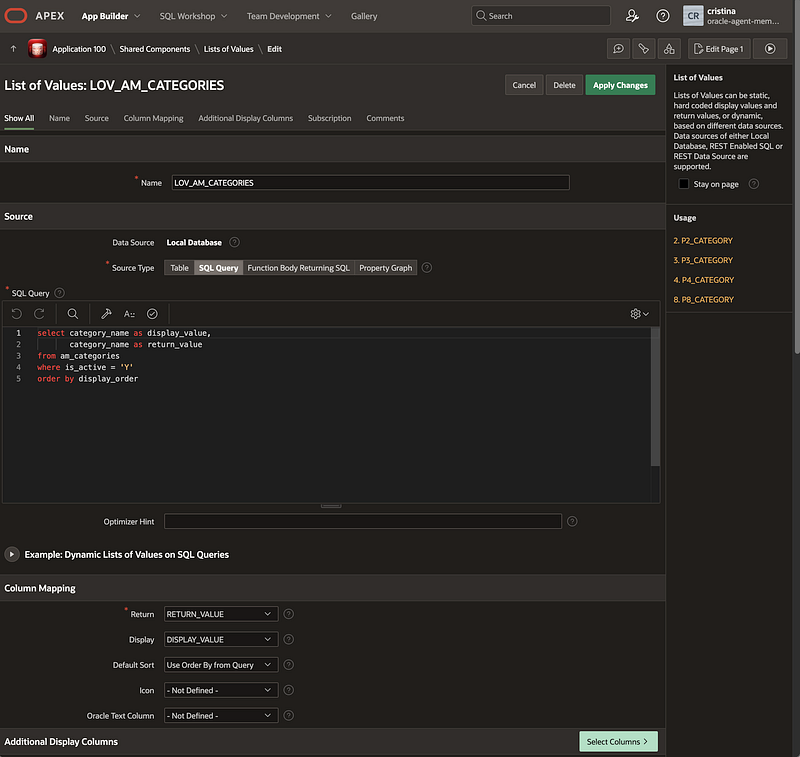
3.5 Shared LOVs for categories and projects
The app uses categories and projects across multiple pages.
Categories are used in Add Memory, Search and Chat. Projects are used in Add Memory, Search, Chat and Project 360. Instead of hardcoding values in every page, I created shared LOVs backed by APEX tables. The categories include:
- Customer Engagement
- Internal Notes
- Platform / Product
- Technical Issue
- Demo / PoC
- Architecture
- Follow-up / Next Steps
This made the app more consistent and easier to maintain. One important lesson was how to handle “All Categories” and “All Projects”. These should be display labels only. They should not be sent to the backend as real values. The correct behavior is:
- If the user selects “All Categories”, APEX sends no category filter.
- If the user selects a real category, APEX sends that category.
This avoided backend validation errors such as “Unsupported category: All Categories”.
3.6 Home page: making the architecture visible
The Home page acts as the entry point to the APEX workspace.
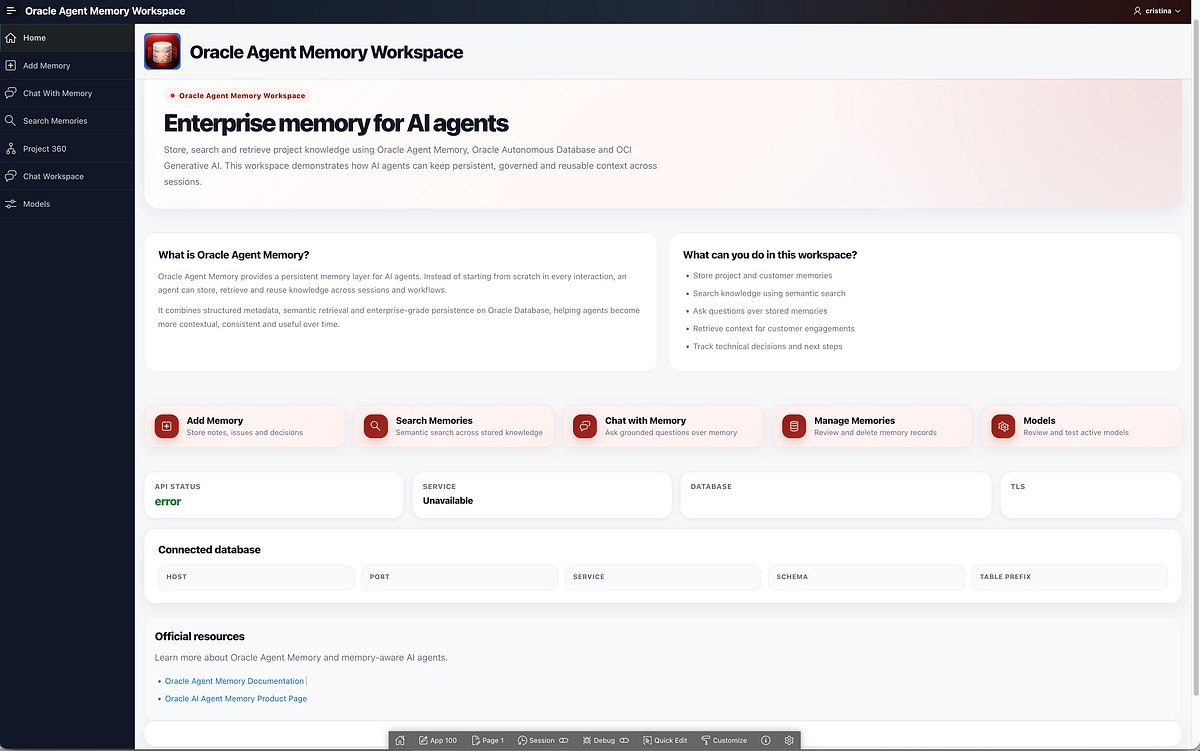
It explains what the Oracle Agent Memory Workspace is and gives users quick access to the main flows:
- Add Memory
- Search Memories
- Chat
- Models
- Project 360
It also shows API status and active database information.
The Home page calls backend endpoints such as:
- GET /health
- GET /config/database
The database configuration card shows details such as connection type, schema, database service, TLS status and memory table prefix.
This is useful because users can immediately see whether the backend is online and which database is connected.
For demos, this is particularly helpful. Instead of verbally explaining that the app is connected to Autonomous Database over TLS, the app shows it directly.
3.7 Add Memory page
The Add Memory page is where memories are created explicitly. This page calls the backend endpoint for memory creation.
The user provides:
- title
- content
- category
- customer project
- tags
- source
The backend then stores the memory through Oracle Agent Memory and indexes it for future retrieval. This is one of the most important pages because it enforces the design principle of the whole workspace:
- The chat does not create memory automatically.
- Memory creation is explicit and intentional.
This helps keep the memory store cleaner and more trustworthy. In future iterations, I would improve this page with memory templates.
For example:
- Meeting Note
- Technical Decision
- Architecture Note
- Issue / Blocker
- Experiment Result
- Next Step
- Customer Follow-up
Selecting a template could pre-fill the content area with a structured format, improving memory quality.
[IMAGE 6 — ADD MEMORY PAGE]
Put a screenshot of the APEX Add Memory page.
Suggested caption:
Figure 6 — Add Memory creates structured memories with category, project, tags and source metadata.
3.8 Search Memories page
The Search Memories page allows users to search stored memories semantically. The page sends a query and optional filters to the backend search endpoint.
Filters include:
- category
- customer project
- tags
- limit
The backend returns a list of matching memories. Each result includes metadata such as memory ID, title, content, category, project, source, created date and score. The APEX page stores results in an APEX collection and renders them as cards or reports.
One important issue I fixed here was the response shape.
The backend returns results under a memories array. At one point, the APEX page was expecting a different name, which caused zero results to appear even when the backend returned memories correctly.
The lesson was simple: always inspect the actual JSON response and align the APEX parser with it.
Another issue was the “All Categories” filter. APEX initially sent it as a real category value. The backend correctly rejected it because it was not a supported category. The fix was to make “All Categories” a null display value, not an API filter value.
[IMAGE 7 — SEARCH MEMORIES PAGE]
Put a screenshot of the APEX Search page showing filters and results.
Suggested caption:
Figure 7 — Search Memories allows semantic retrieval with project, category and tag filters.
3.9 Chat Workspace: a ChatGPT-style experience in APEX
The Chat Workspace was the most interesting page to build in APEX. The goal was to make it feel like a conversational workspace rather than a simple form with a question and answer field.
The page includes:
- a header with the active model
- prompt suggestions
- category and project filters
- conversation area
- input composer
- sources panel
- source details
The chat calls the backend /chat endpoint. The backend returns an answer and the memories used as sources.
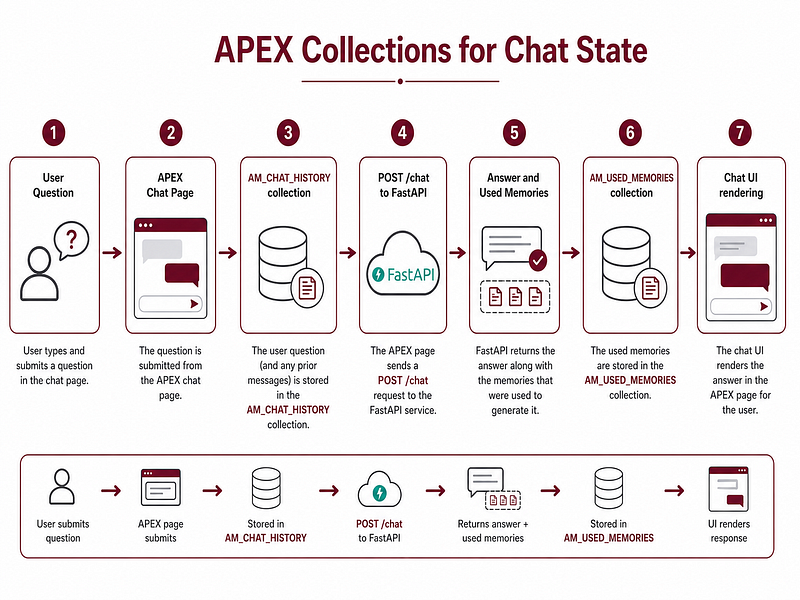
To manage conversational state inside APEX, I used APEX collections.
- AM_CHAT_HISTORY stores the session-level conversation.- AM_USED_MEMORIES stores the memories used by the latest answer.
This allowed the page to render user and assistant messages as chat bubbles.
The sources panel shows which memories were used to generate the answer. That source visibility is important. A memory-aware assistant should not behave like a black box. If the answer is grounded in memory, the user should be able to inspect the underlying context.
[IMAGE 8 — APEX CHAT WORKSPACE]
Put a screenshot of the APEX Chat Workspace showing chat bubbles, input area and sources panel.
Suggested caption:
Figure 8 — Chat Workspace brings a ChatGPT-style experience to APEX, grounded in Oracle Agent Memory.
3.10 APEX collections for chat state
APEX collections were very useful for the Chat Workspace. Instead of creating permanent tables for temporary chat state, I used session-level collections.
The first collection, AM_CHAT_HISTORY, stores:
- role
- message preview
- timestamp
- source count
- full message
The second collection, AM_USED_MEMORIES, stores:
- memory ID
- title
- category
- customer project
- source
- score
- content preview
- created date
- full content
This approach works well for a session-based chat experience.
When the user asks a question, APEX adds the user message to the collection, calls the backend, parses the response, stores the assistant answer and stores the used memories.
Then the page renders the conversation and sources from the collections. This pattern made the APEX chat feel much more natural.
3.11 Models page in APEX
The Models page lets users inspect and manage OCI Generative AI chat models from APEX. It calls backend endpoints to:
- get the current model configuration
- test a selected chat model
- save a selected model as active
The page displays:
- active chat model
- active provider
- embedding model
- embedding dimensions
- available chat models
- test prompt
- model response
This page was especially useful because the active model also appears in the Chat Workspace header.
If the model is changed in the Models page, the Chat Workspace can call the backend and display the real active model, rather than a hardcoded value.
I also hit an interesting APEX-specific issue here.
The select list for model selection was initially returning a value like cohere.command-r-plus-08-2024;cohere.command-r-plus-08-2024. OCI Generative AI expected only the model ID, so it returned a model-not-found error.
The fix was to configure the LOV so the return value was only the actual model ID.
Small UI configuration details matter when the backend expects precise payloads.
[IMAGE 10 — APEX MODELS PAGE]
Put a screenshot of the APEX Models page.
Suggested caption:
Figure 10 — The Models page allows testing and switching the active OCI Generative AI chat model from APEX.
3.12 Project 360
Project 360 is the page that shows the value of persistent memory most clearly. Instead of asking individual questions, the user selects a project and generates higher-level outputs from the stored project memories.
The page can generate:
- project summary
- customer tracking note
- risks and blockers
- next steps
- follow-up email
- slide bullets
- custom prompt output
Internally, this page calls the backend /chat endpoint with predefined prompts and a project filter. The result is displayed as a generated insight, with sources used by the response.
The page can also load project memories through the search endpoint and display them as memory cards. This turns stored memories into usable project intelligence.
For example, if you have been adding technical notes, architecture decisions, blockers and follow-up actions for a project, Project 360 can generate an executive summary or customer tracking note without you having to paste all the context again.
[IMAGE 11 — PROJECT 360 PAGE]
Put a screenshot of Project 360 after generating a project summary or tracking note.
Suggested caption:
Figure 11 — Project 360 generates project-level outputs from stored Oracle Agent Memory context.
3.13 Debugging lessons from APEX
The APEX integration was powerful, but it also surfaced very practical debugging lessons.
The first lesson was to always inspect the real JSON payload. Several issues came from the difference between what I thought APEX was sending and what it was actually sending.
The second lesson was to log every REST call. The AM_API_LOG table saved a lot of time because I could inspect request body, response body, status code and error message.
The third lesson was to avoid hardcoding display labels as API values. Values like “All Categories” or “All Projects” are useful for users, but they should not be sent to the backend as real filters.
The fourth lesson was to keep debug regions hidden once the page works. During development, it is useful to show raw API response fields. But for a polished app, those should move into an admin/debug page or stay in the API log table.
The fifth lesson was that APEX session state matters. If a page item does not exist, APEX will throw an item ID error. If a page item has an old value in session state, it may continue submitting wrong values until the page cache is cleared.
3.14 APEX and React using the same backend
One of the most satisfying parts of this architecture is that React and APEX use the same backend. They are different frontends with different strengths.
React gave me a polished local workspace with a modern UI.
APEX gave me a faster enterprise-style application layer with built-in forms, lists, regions, session state, reports and PL/SQL integration. But both consume the same API.
This means:
- same memory creation logic
- same search behavior
- same chat behavior
- same model configuration
- same backend errors
- same database connection
- same Oracle Agent Memory layer
That is the value of having FastAPI in the middle. The frontends can evolve independently, while the memory backend remains reusable.
[IMAGE 12 — TWO FRONTENDS SAME BACKEND]
Put a diagram showing React and APEX both consuming the same FastAPI backend.
Suggested caption:
Figure 12 — React and Oracle APEX provide different user experiences while sharing the same memory backend.
3.15 Target production architecture
The current APEX integration uses ngrok for local development.
That is fine for demos, but not for production.
The target production architecture would be:
Oracle APEX → OCI API Gateway → FastAPI backend deployed on OCI → Oracle Agent Memory → Oracle Autonomous Database → OCI Generative AI.
Secrets should be stored in OCI Vault.
APEX should use Web Credentials or another secure mechanism instead of hardcoded API keys.
The backend should include richer audit logging, rate control and potentially workspace-level isolation.
This would turn the current development architecture into a more robust enterprise architecture.

3.16 Final thoughts
This final part of the series brought Oracle Agent Memory into Oracle APEX.
The result is an enterprise-style memory console that can create memories, search them, chat over them, inspect sources, manage models and generate project-level insights.
What I like about this architecture is the separation of responsibilities.
- Oracle APEX provides the enterprise application experience.
- FastAPI provides the reusable API layer.
- Oracle Agent Memory provides persistent memory.
- Oracle Autonomous Database provides the database foundation.
- OCI Generative AI provides embeddings and chat inference.
This feels like a practical pattern for building memory-aware AI applications in the Oracle ecosystem.
The most important idea remains the same:
AI agents become more useful when they can remember the right context, retrieve it safely and show where their answers come from. That is what this workspace is trying to demonstrate. And this is also where I think Oracle Agent Memory becomes really interesting: not as an isolated AI feature, but as part of a governable, inspectable and enterprise-ready architecture.
This concludes the three-part series.
- In Part 1, I explained the inspiration and architecture.
- In Part 2, I covered the FastAPI backend, Autonomous Database and OCI Generative AI.
- In Part 3, I showed how the same backend can be consumed by Oracle APEX to create an enterprise memory console.
Thanks for reading — and if you are interested in Oracle, AI, Data Science, APEX, Autonomous Database and real enterprise AI demos, follow me here on Medium and LinkedIn to keep learning with me 🙂