Oracle APEX 24.1 has introduced an exciting new feature: the APEX Assistant, which leverages OpenAI’s large language model to help developers generate code and receive intelligent suggestions during app development. In this article, I’ll walk you through the steps to set up your OpenAI credentials in Oracle APEX and enable the AI Assistant for your applications.
What is APEX AI Assistant?
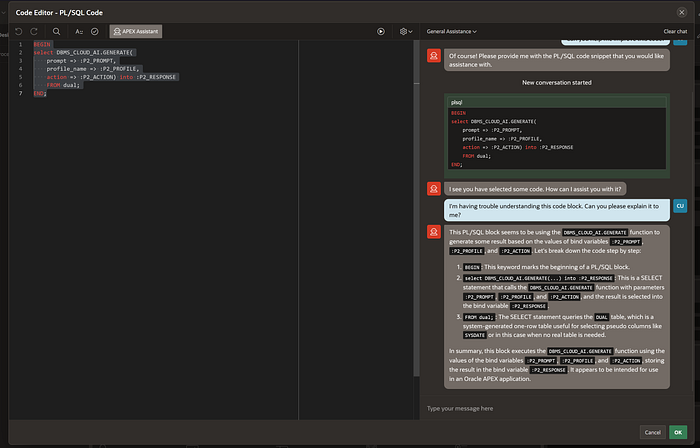
APEX Assistant is a built-in AI tool in Oracle APEX that allows developers to interact with the platform using natural language prompts. It can help you with various tasks such as:
- Generating SQL and PL/SQL code.
- Providing context-specific suggestions based on your project.
- Accelerating your development process by automatically creating queries, code blocks, or debugging tips.
In essence, APEX Assistant serves as an AI-powered assistant for developers, making coding easier and faster by leveraging the capabilities of OpenAI.
Step-by-Step Guide to Setting Up OpenAI Credentials in Oracle APEX
To take full advantage of the APEX Assistant, you first need to set up your OpenAI credentials inside Oracle APEX. Here’s how to do it:
Step 1: Create a New Web Credential in Oracle APEX
- Navigate to Web Credentials:
In your APEX workspace, go to Workspace Utilities → Web Credentials → Create/Edit. This is where you’ll store your OpenAI credentials securely.
2. Enter the Web Credential Information:
Fill out the fields as shown:
- Name: Choose a name like
Credentials for OpenAI. - Static ID: Use
credentials_for_open_aias the identifier. - Authentication Type: Select HTTP Header.
- Credential Name: Use
Authorization(this is the header that OpenAI expects). - Credential Secret: This will be your OpenAI API Key (we’ll retrieve it in the next step).
- Valid for URLs: Enter
https://api.openai.com/v1, which is the endpoint for OpenAI’s API.
3. Apply Changes: Once all fields are filled, click Apply Changes to save your credentials.

Step 2: Retrieve Your OpenAI API Key
To authenticate your Oracle APEX application with OpenAI, you’ll need to generate or retrieve an API key from your OpenAI account.
- Log in to OpenAI: Go to the OpenAI platform.
- Navigate to API Keys:
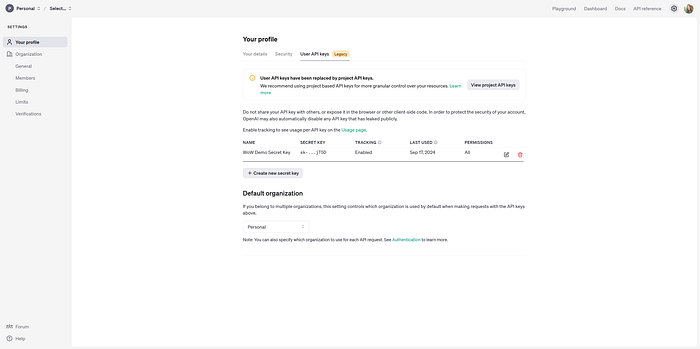
In your profile, switch to the API Keys tab (shown below). Here, you’ll find any existing keys or you can create a new one.
3. Copy Your Secret Key:
Copy the Secret Key (such as sk-...) and paste it into the Credential Secret field in Oracle APEX.
4. Security Tip: Don’t share this key publicly, and make sure it’s stored securely, as it grants access to OpenAI’s API.
Step 3: Final Configuration and Restart
Once you’ve set up your OpenAI credentials in Oracle APEX, it’s recommended to restart your Autonomous Database. Restarting the database ensures that all changes, including the configuration of credentials, are properly applied.
To restart your Autonomous Database:
- Navigate to your OCI Console.
- Go to your Autonomous Database details.
- Choose the Restart option to ensure that all settings are fully refreshed.
After restarting, you should see the APEX Assistant feature enabled in your APEX environment, ready to assist with AI-powered code generation and suggestions.
Conclusion
With Oracle APEX 24.1 and the new AI-powered APEX Assistant, developing applications has never been faster or more intuitive. By setting up your OpenAI credentials, you can leverage cutting-edge AI to streamline coding tasks, generate SQL or PL/SQL code, and much more. This integration empowers developers to focus on higher-level logic while the AI handles repetitive or complex code generation.
If you haven’t tried it yet, follow these steps to set up your credentials and unlock the full power of AI-assisted development in Oracle APEX!
As always, you can find me on LinkedIn! 🙂
Happy coding! 🚀