When you’re running Large Language Models (LLMs) or other heavy AI workloads, one of the first big questions is:
“What GPU shape do I actually need in OCI Data Science?”
- Pick too small → the model won’t fit in memory.
- Pick too large → you’re overpaying for unused capacity.
This guide walks you through the key concepts, the GPU shapes available in OCI Data Science, and what shape matches the most popular AI models today.
1. Key concepts before we start
Before diving into GPU shape tables and diagrams, let’s make sure we’re aligned on a few fundamental concepts that directly affect model deployment in OCI Data Science.
1.1 What is a Shape?
In OCI, a shape is essentially a hardware blueprint that specifies:
- GPU type & count — A10, L40S, or A100, and how many of them.
- VRAM per GPU — Memory dedicated to each GPU (e.g., 24 GB, 48 GB, 80 GB).
- CPU cores & system RAM — The host machine’s processing and memory specs.
- Network bandwidth & local storage — Throughput and disk size for your workloads.
Example:BM.GPU.A100-v2.8 means:
- BM = Bare Metal → You get the entire physical server.
- GPU.A100-v2 = NVIDIA A100 (80 GB) second generation.
- 8 = Eight GPUs per server.
1.2 Bare Metal in OCI Data Science
OCI Data Science runs GPU workloads primarily on bare metal shapes for maximum performance.
- Bare Metal (BM) = Dedicated server, no hardware sharing, lowest latency, maximum throughput — ideal for LLM training and high-throughput inference.
- Why it matters: No noisy neighbors, predictable results, and full GPU/CPU/network bandwidth for your workloads.
1.3 Model Size & Precision
Model Size: Often expressed in billions of parameters (B), and directly influences VRAM needs.
Example: A 7B model in FP16 format might need ~14 GB VRAM, while a 70B model could require hundreds of GB.
Precision:
- FP16 (half precision) → Balanced speed and accuracy, higher VRAM usage.
- INT8 / 4-bit quantization → Smaller VRAM footprint, but some accuracy trade-offs.
1.4 Why VRAM Matters for LLMs
VRAM (Video RAM) is the workspace your GPU uses to hold everything it needs while running a model. For large language models (LLMs), this includes:
- Model weights — The largest portion; think of this as the neural network’s “knowledge.”
- Activations — Intermediate calculations during the forward pass.
- KV cache — Stores past attention keys and values for transformer models, enabling long context conversations without reprocessing old tokens.
- Framework overhead — Memory consumed by PyTorch, TensorFlow, vLLM, or other inference/training libraries.
Why it matters:
If your VRAM can’t fit all of this, you can’t load or run the model in its current form — it’s like trying to fit a giant suitcase into a small overhead bin.
What to do if VRAM is insufficient:
- Tensor Parallelism — Split the model across multiple GPUs so each handles part of the computation.
Example: A 70B FP16 model that needs ~640 GB VRAM might be spread across 8×A100 80 GB GPUs.
2. Quantization — Compress weights to 8-bit or 4-bit, dramatically lowering VRAM requirements at the cost of a small accuracy drop.
3. Reduce batch size or context length — Smaller batches and shorter contexts reduce memory usage, though this might affect throughput and user experience.
💡 Tip: Always account for extra headroom in VRAM usage. Loading a model that just barely fits can still fail due to framework or CUDA memory fragmentation.
1.5 Tensor Parallelism
Think of tensor parallelism as dividing the heavy lifting of a model across multiple GPUs so they work together like a relay team.
Instead of loading the entire model onto a single GPU (which may not have enough VRAM), we split the tensors — the large multidimensional arrays that store model weights and intermediate data — into smaller chunks, each processed on a different GPU.
When to use:
- The model is too big for one GPU’s VRAM (e.g., LLaMA 70B in FP16).
- You want to scale inference/training speed by using multiple GPUs in parallel.
How it works in practice:
- A 70B FP16 model might require tensor-parallel=8 → split across 8 GPUs, each handling 1/8 of the model.
- Frameworks like Megatron-LM, DeepSpeed, and vLLM can automate the split.
Trade-offs:
- Needs high-bandwidth GPU interconnect (NVLink or similar) for speed.
- Slight increase in latency due to communication overhead.
1.6 Multimodel Serving
Multimodel serving is like turning one GPU into a co-working office for multiple models — they share the same GPU memory and compute, as long as they fit.
Why use it:
- Optimize GPU utilization when models are smaller or not used 100% of the time.
- Lower costs by avoiding dedicated hardware for each model.
How it works:
- Frameworks like vLLM (for LLMs) or Hugging Face TGI load multiple models into VRAM.
- Requests are routed to the right model without unloading others from memory.
Example:
You might run LLaMA 13B and Mistral 7B on the same A100 80 GB GPU if their combined VRAM usage (plus KV cache and framework overhead) stays under the limit.
Things to watch:
- GPU VRAM becomes the hard limit — adding too many models can cause OOM (Out Of Memory) errors.
- Model switching and memory fragmentation can reduce throughput if not managed well.
2. VRAM Estimation — Quick reference
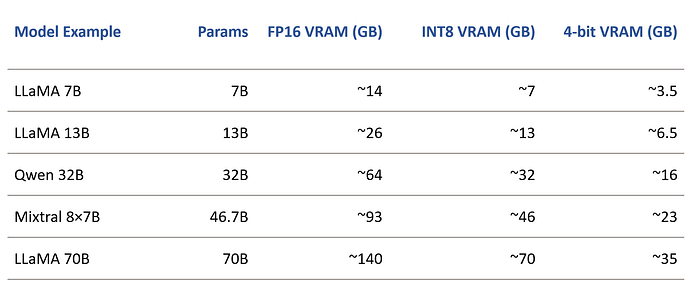
💡 Add ~30–50% overhead for activations, KV cache, and framework usage.
3. OCI Data Science GPU Shapes — Understanding the options
When working with OCI Data Science, the GPU shape you choose defines the entire hardware environment your AI model will run on.
A shape tells you exactly:
- The type and number of GPUs.
- VRAM per GPU (key for model size and precision).
- CPU specs and total system RAM.
- Network bandwidth and local storage performance.
Unlike many clouds, OCI focuses heavily on Bare Metal GPU shapes — meaning you get the entire physical server, no sharing of GPUs, CPUs, or storage bandwidth.
This matters for AI workloads because it gives you:
- Consistent performance — no “noisy neighbors.”
- Predictable latency — critical for LLM inference.
- Maximum throughput — essential for large-batch training and serving.
Let’s look at the most relevant GPU shapes available in OCI Data Science:

4. Popular LLMs — and how they relate to OCI Data Science
Before we map models to shapes, it’s important to note:
Not all popular LLMs are “integrated” with OCI Data Science out of the box. OCI Data Science provides the compute (GPU shapes), storage, and orchestration capabilities — but the actual model weights must either:
- Be downloaded (if openly available, like LLaMA, Qwen, Mistral) and deployed locally in your session, or
- Be accessed via a REST API if the provider does not distribute weights (e.g., OpenAI GPT-OSS, some Moonshot AI or Microsoft models).
Licensing matters — some models are open-source (can run directly on OCI GPUs), while others are closed or have restrictive licenses.
Here’s a sample of the current top models by overall performance (based on public benchmarks) and what it means for OCI:
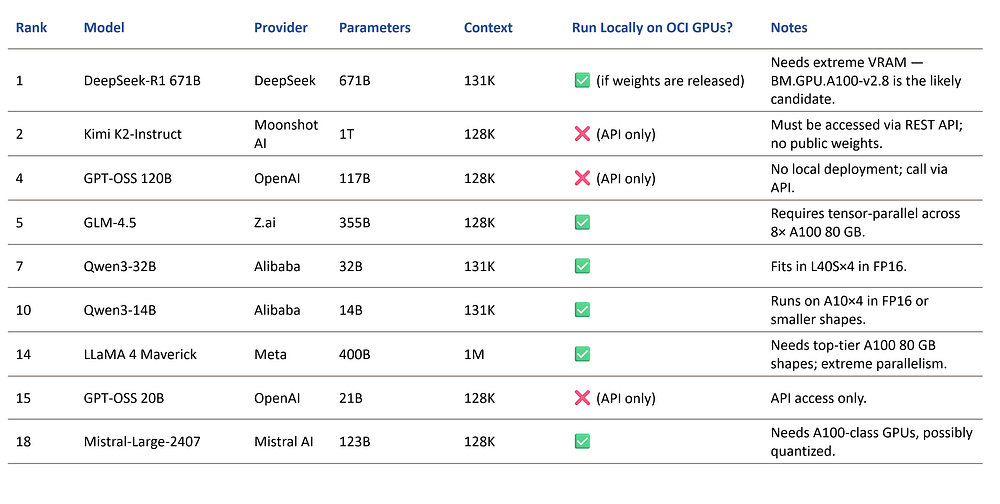
💡 Rule of thumb:
- If the model is open-source and has downloadable weights → you can deploy it on OCI Data Science shapes directly.
- If the model is closed or proprietary → you’ll need to integrate it via a REST API call from your application, even if you use OCI for orchestration or pre/post-processing.
5. Deployment Flow in OCI Data Science
Running AI models on OCI Data Science isn’t just about picking the right shape — you also need to follow the right workflow to ensure smooth deployment, scaling, and optimization.
Step-by-step process:
- Create a Notebook Session
- From the OCI Console, create a Notebook Session.
- Choose your GPU shape based on model size, VRAM needs, and precision requirements (refer to the table earlier in this guide).
- Attach a block storage volume if you plan to store large model weights locally for reuse between sessions.
2. Load Model Weights or Connect to an API
- Open-source models: Download from sources like Hugging Face, GitHub, or model provider repositories. Store in your session or Object Storage.
- Proprietary/closed models: Instead of downloading weights, configure your notebook to call the provider’s REST API (e.g., OpenAI, Anthropic) for inference.
3. Run Inference or Training
- Training/fine-tuning: Use frameworks like PyTorch, TensorFlow, or Hugging Face Transformers.
- Inference: Use optimized serving frameworks such as vLLM or Text Generation Inference (TGI) to maximize throughput and reduce latency.
- Multi-GPU: If using tensor-parallelism, ensure NVLink or high-bandwidth interconnect is configured by default in your shape.
4. Deploy the Model
- Real-time serving → Use Model Deployment in OCI Data Science to expose an HTTPS endpoint for low-latency inference.
- Batch jobs → Use Jobs in OCI Data Science to run scheduled or on-demand batch processing of large datasets.
- Pipelines → Combine multiple preprocessing, inference, and post-processing steps into an automated workflow.
5. Monitor & Optimize
- Track GPU utilization, VRAM usage, and latency metrics.
- Use OCI’s Monitoring and Logging services to detect bottlenecks.
- If you see low GPU usage → consider multimodel serving or scaling down to a smaller shape.
- If you see VRAM overflow → reduce batch size, quantize, or move to a larger shape.
6. Cost awareness in OCI Data Science
Choosing the wrong shape can burn budget fast. The key is matching shape size to actual VRAM needs — so you’re not paying for unused GPU capacity.
Illustrative example (not actual pricing — check OCI pricing page for latest: https://www.oracle.com/cloud/compute/pricing/):
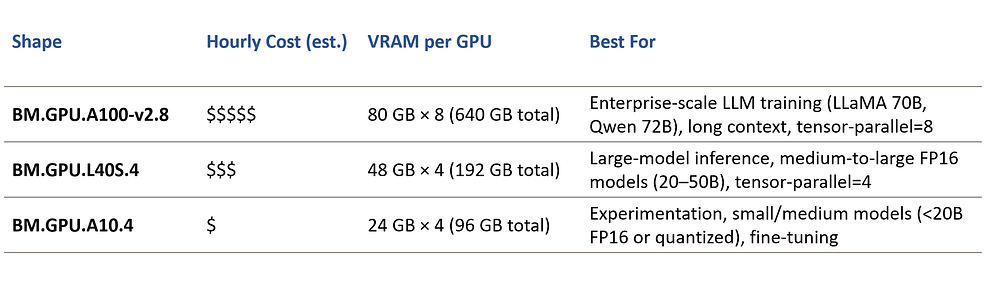
Cost-saving tips:
- Right-size for workload → Don’t run a 13B model on an A100 8×80 GB unless you’re batch processing massive requests.
- Quantize models → Move from FP16 to 8-bit or 4-bit where possible. This lets you use smaller shapes.
- Multimodel serving → Host multiple small/medium models on a single GPU to increase utilization.
- Spot pricing (Preemptible instances) → For non-critical batch jobs, use cheaper preemptible GPU shapes.
💡 Pro tip: Monitor usage after deployment. If you’re not hitting >60–70% GPU utilization consistently, you might be over-provisioned.
7. Final thoughts
Choosing the right GPU shape in OCI Data Science is both an art and a science.
You need to balance model size, VRAM requirements, cost efficiency, and deployment strategy — all while keeping in mind that the LLM and AI infrastructure market evolves at lightning speed.
New GPU shapes, more efficient serving frameworks, and entirely new model architectures appear almost every month. A shape that’s “perfect” for your workload today might be outdated in a year.
That’s why staying informed and adaptable is just as important as the initial choice.
If you’ve found this guide useful, I share more practical AI, ML, and OCI Data Science insights regularly.
📌 Follow me on LinkedIn for future updates, deep dives, and hands-on guides.
📌 Subscribe to my Medium so you don’t miss the next articles in this series.
The AI infrastructure game is only getting bigger — let’s make sure you’re ready to play it smart.