
Workflows are essential in modern applications to streamline processes, ensure consistency, and automate repetitive tasks. Oracle APEX provides a robust workflow engine that allows developers to automate approvals and rejections efficiently.
Despite the abundance of blogs and documentation available, many resources often miss crucial steps, such as ensuring a workflow exists both in the development environment and as an active version. Additionally, important aspects like parameter handling and initiating a workflow process are frequently overlooked. In this guide, I aim to create a step-by-step tutorial covering all common questions and providing a detailed walkthrough for building your first workflow in a practical use case.
This article is based on a real-world application I developed for an NGO that needed to automate the process of donor registrations and item approvals. The application facilitates seamless approvals, database updates, and email notifications using Oracle APEX workflows.
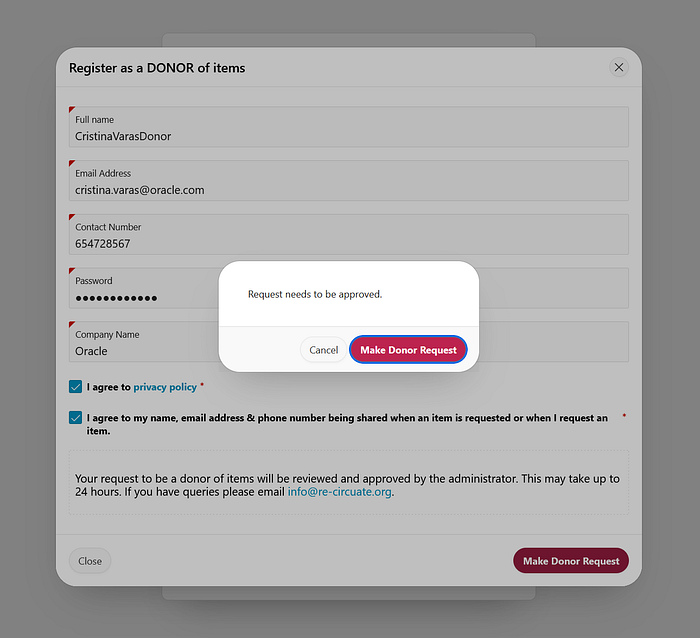
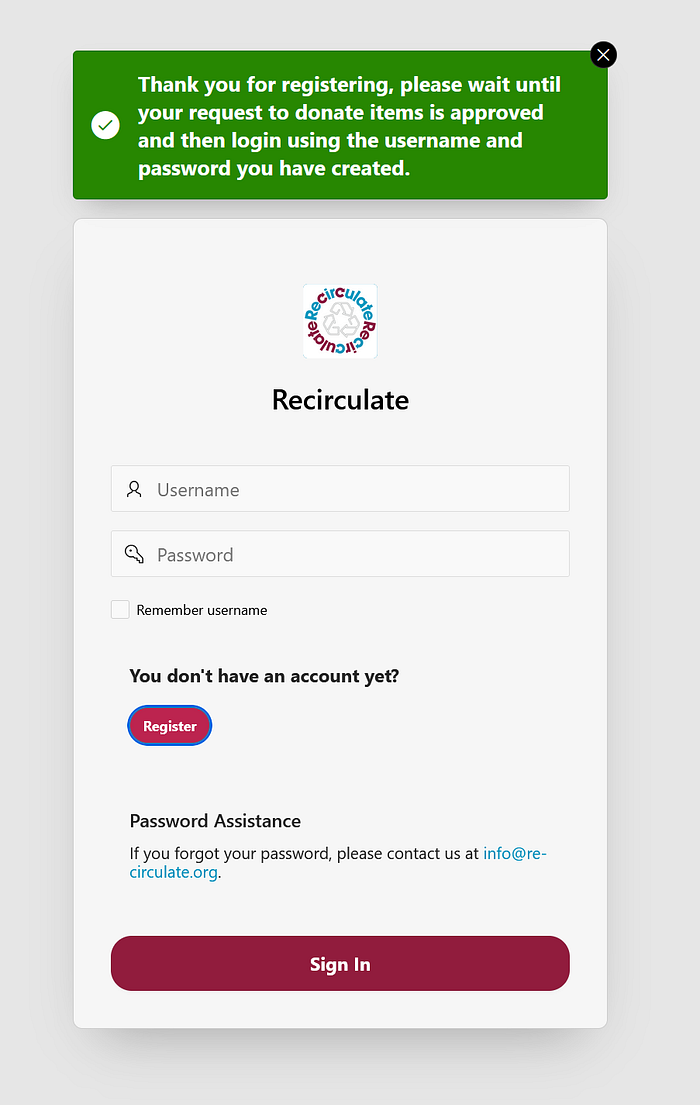
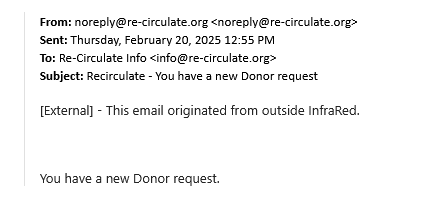
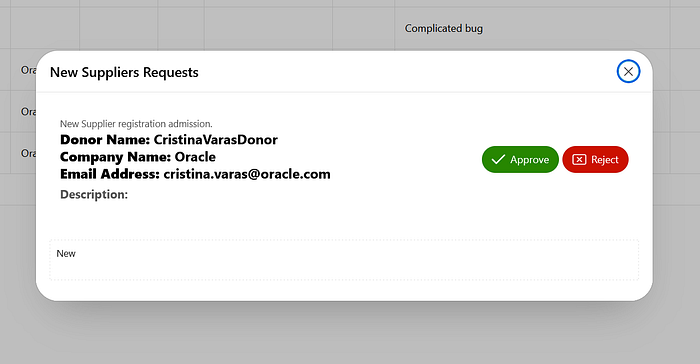
At the beginning of this article, I have included screenshots showing the entire process:
- The donor submits a request.
- The administrator receives a notification.
- The administrator approves or rejects the request.
- The system updates the database accordingly.
- The donor receives an email confirmation.
This guide will explain how to structure and implement such workflows in Oracle APEX.
1. Use Case: NGO Donation Management System
The NGO’s application facilitates item donations and has three user roles:
- Recipient: The person who searches for items and makes requests. No approval is needed to register as a recipient.
- Donor: The person who uploads items to be donated. Requires administrator approval to register.
- Administrator: Manages approvals and rejections of donor and item requests.
The request shown in this article is specifically for registering as a donor. Since recipients can register freely, only donors require approval to ensure that the system maintains quality and authenticity.
The approval workflow ensures that only verified donors can contribute items. The automation improves efficiency and reduces manual workload for administrators.
When a user requests to become a donor:
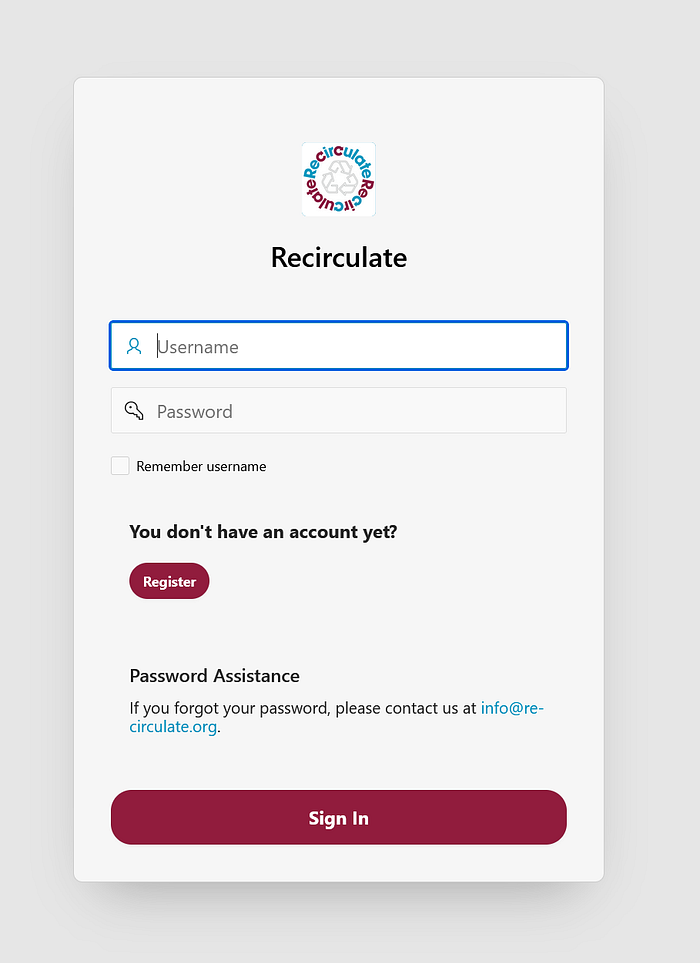
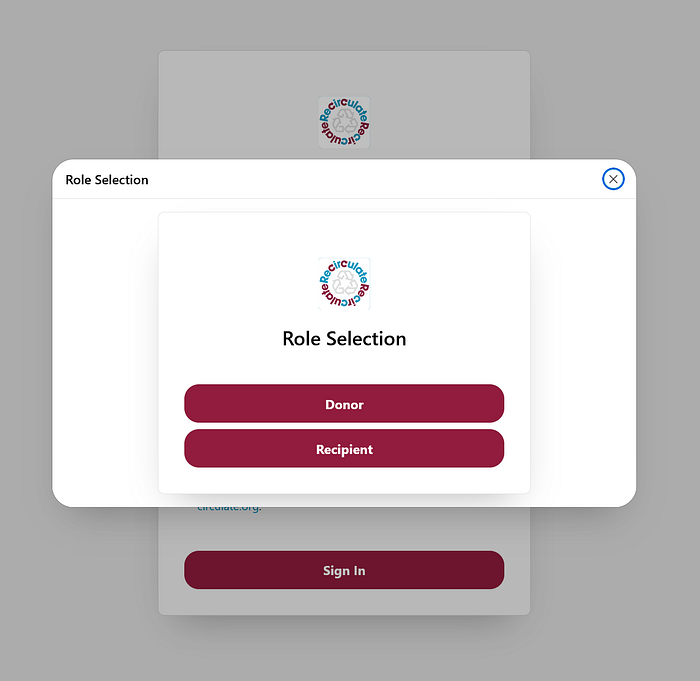
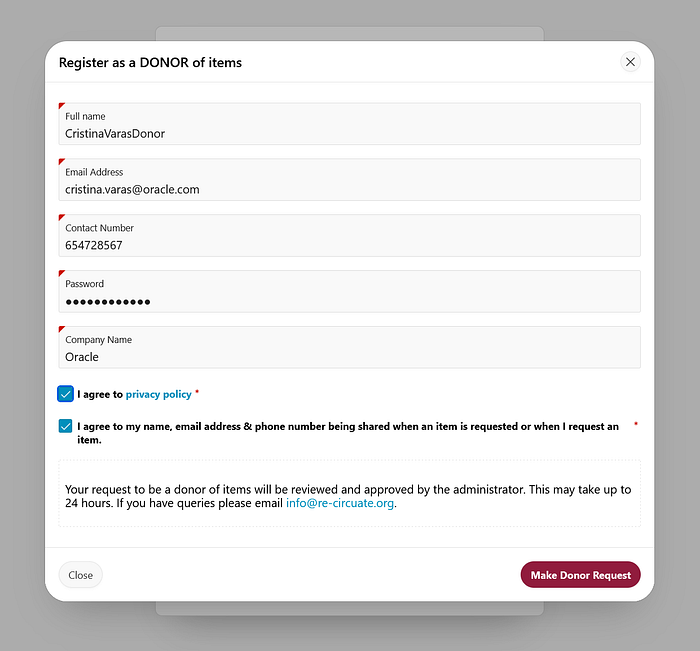
1. An email notification is sent to the administrator.
2. The administrator reviews the request and either approves or rejects it.
3. If approved, the donor is added to the system and receives a confirmation email.

4. If rejected, the donor request remains in the pending table, and no further action is taken.
2. Workflow Overview
The workflow consists of:
1.Notification of Donor Request: Sent to the administrator upon submission.
2. Approval Decision: Administrator selects either approve or reject.
3. Database Update:
- If approved, the donor is added to the
LOGIN_RECIRCULATE_USERStable.


- If rejected, the request remains in
SUPPLIER_LOGIN_REQUESTwith a status of 0.
4. Email Confirmation: The donor is notified of their application status.
Below is a visual representation of the workflow:
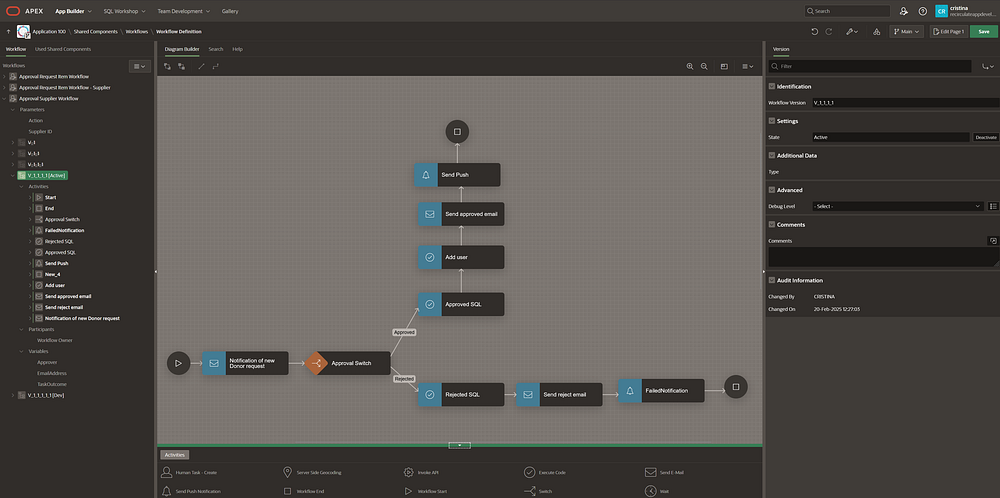
The workflow is triggered when the administrator takes action on a request.
3. Implementing the Workflow in Oracle APEX
Adding the Process in Page Designer
To execute the workflow, a process is added in Page Designer under the After Footer section. The process type is set to Workflow, and it references the defined workflow Approval Supplier Workflow.
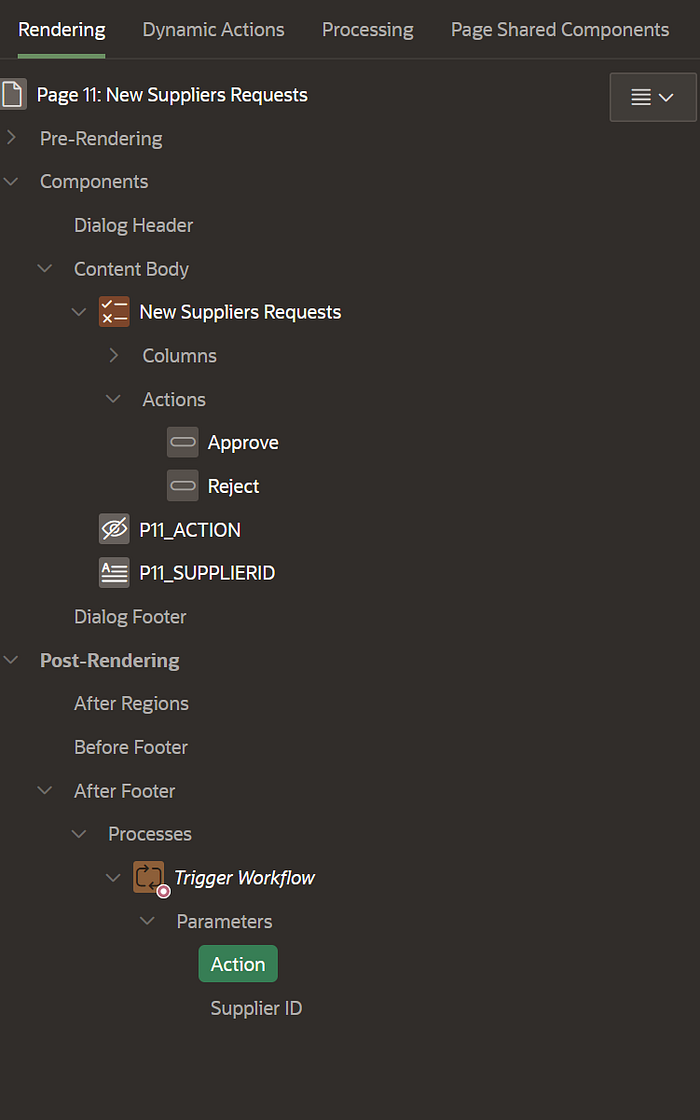
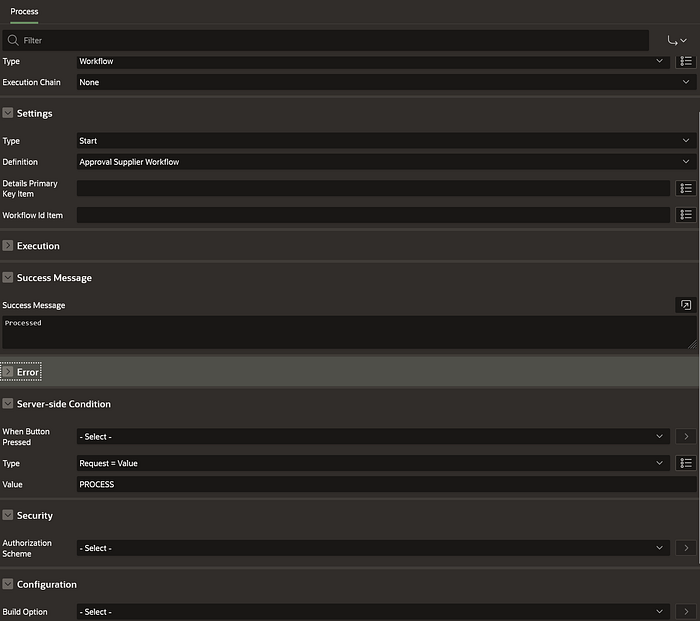
In Process Settings:
- Type: Start
- Definition: Approval Supplier Workflow
- Execution Condition: Triggered when an action (approve/reject) is taken
Defining the Parameters
Two key parameters are passed to the workflow:
- Action: Indicates approval (1) or rejection (0).
- Supplier ID: Identifies the donor request.
These parameters ensure that the correct operation is executed.
Defining P11_ACTION and P11_SUPPLIERID
- P11_ACTION: Stores the approval or rejection action (1 for approve, 0 for reject). This value is set dynamically based on the button clicked.
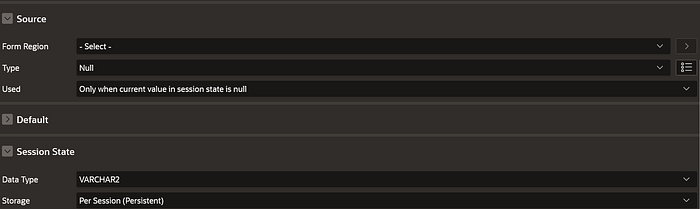
- P11_SUPPLIERID: Stores the ID of the donor making the request.
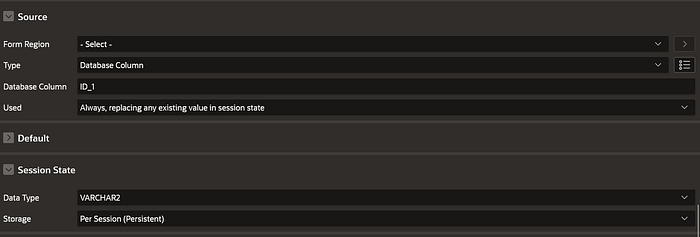
Both of these are hidden page items that are dynamically populated before executing the workflow.
Workflow Execution Logic
1.Updating Status
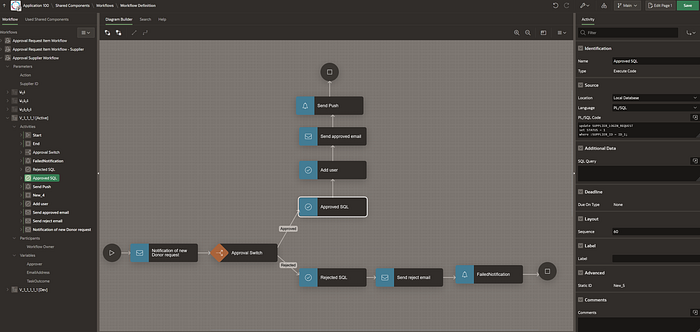
UPDATE SUPPLIER_LOGIN_REQUEST
SET STATUS = 1
WHERE ID_1 = :P11_SUPPLIERID;
If rejected, STATUS = 0.
2. Adding User Upon Approval
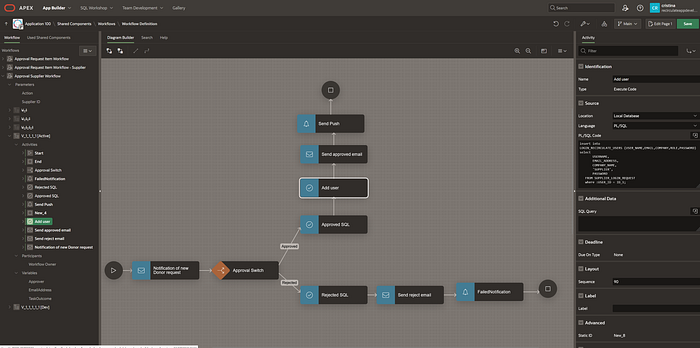
The addition of the user upon approval is not handled directly in the workflow SQL script. Instead, it is executed as a function defined in the Object Browser of Oracle APEX. The workflow makes a call to this function, ensuring that user creation is handled consistently and securely.
The function is structured as follows:
CREATE OR REPLACE FUNCTION ADD_NEW_USER(p_supplier_id IN NUMBER) RETURN BOOLEAN IS
BEGIN
    INSERT INTO LOGIN_RECIRCULATE_USERS (USER_NAME, EMAIL, COMPANY, ROLE, PASSWORD)
    SELECT USERNAME, EMAIL_ADDRESS, COMPANY_NAME, 'SUPPLIER', PASSWORD
    FROM SUPPLIER_LOGIN_REQUEST
    WHERE ID_1 = p_supplier_id;

    RETURN TRUE;
EXCEPTION
    WHEN OTHERS THEN
        RETURN FALSE;
END;
The workflow calls this function with the appropriate P11_SUPPLIERID to ensure the user is correctly added upon approval. This approach centralizes logic in the database rather than scattering SQL statements across different workflow activities.
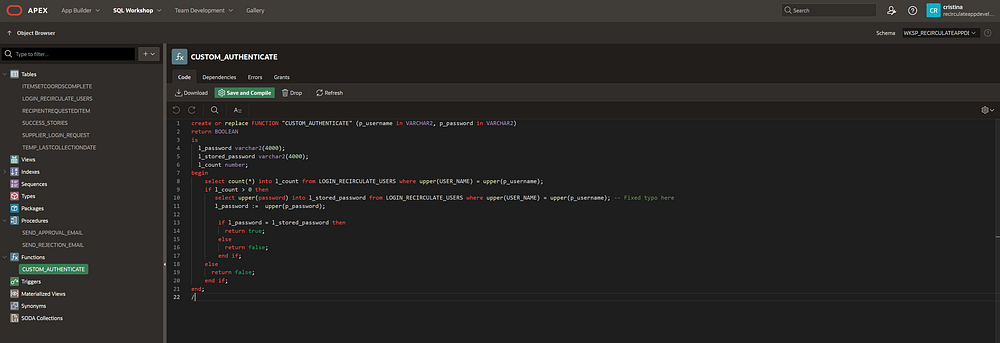
3. Custom Authentication Function
This function ensures that only registered users can log in without requiring a custom login mechanism.
CREATE OR REPLACE FUNCTION CUSTOM_AUTHENTICATE (p_username IN VARCHAR2, p_password IN VARCHAR2)
RETURN BOOLEAN IS
  l_password VARCHAR2(4000);
  l_stored_password VARCHAR2(4000);
  l_count NUMBER;
BEGIN
    SELECT COUNT(*) INTO l_count FROM LOGIN_RECIRCULATE_USERS WHERE UPPER(USER_NAME) = UPPER(p_username);
    IF l_count > 0 THEN
       SELECT UPPER(PASSWORD) INTO l_stored_password FROM LOGIN_RECIRCULATE_USERS WHERE UPPER(USER_NAME) = UPPER(p_username);
       l_password := UPPER(p_password);
        IF l_password = l_stored_password THEN
          RETURN TRUE;
        ELSE
          RETURN FALSE;
        END IF;
    ELSE
      RETURN FALSE;
    END IF;
END;
4. Variables and Parameters in Workflow Execution
Apart from the two parameters (Action and Supplier ID), the workflow utilizes:
- Approver: A static value
&APP_USER.to log who approved the request. This ensures accountability and tracking of who performed the approval. - EmailAddress: Retrieves the donor’s email for sending confirmation. The query used is:
SELECT EMAIL_ADDRESS FROM SUPPLIER_LOGIN_REQUEST WHERE ID_1 = :P11_SUPPLIERID;
- TaskOutcome: Stores the result of the approval process. This variable is used to track whether the request was approved or rejected and can be useful for generating reports or logs related to approval activities.
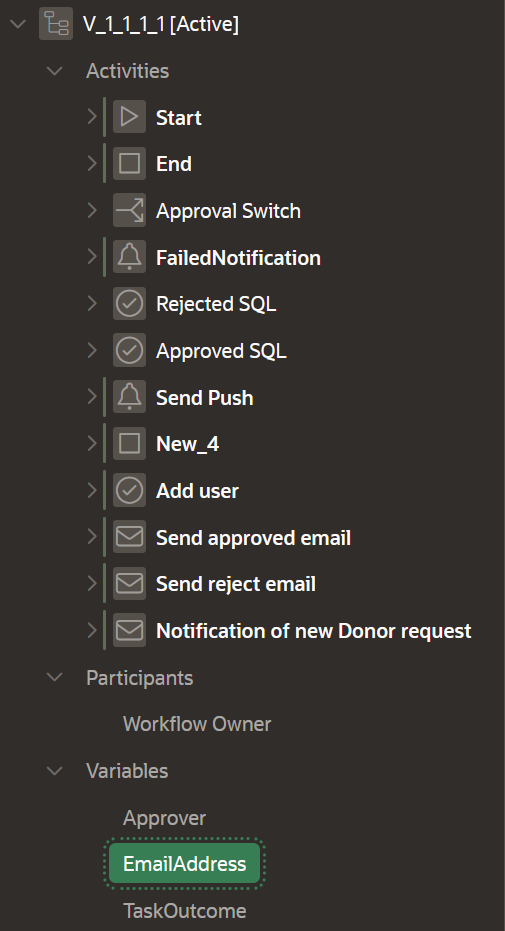
These variables are crucial in dynamically updating and managing the workflow’s execution flow, ensuring that all necessary information is available for decision-making and communication.
5. Sending Confirmation Email
Once the donor request is approved, an email is sent to notify them.
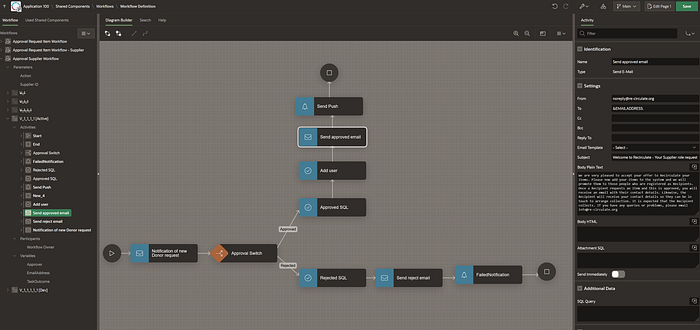
Once the donor request is approved, an email is sent to notify them. This is managed within the workflow as an activity named Send Approved Email.
How the Email is Sent
- The email notification step in the workflow is configured to send an email upon approval.
- The recipient email address is dynamically retrieved using the
EmailAddressvariable, which is set in the workflow as:
SELECT EMAIL_ADDRESS FROM SUPPLIER_LOGIN_REQUEST WHERE ID_1 = :P11_SUPPLIERID;
- The email is sent using the system’s built-in email service in Oracle APEX.
- The email content includes:
From Address:
noreply@your-company.orgTo Address:
&EMAILADDRESS.(variable storing the recipient’s email)Subject:
Welcome to Recirculate - Your Supplier Role Request was ApprovedBody: A template message confirming the donor’s approval and next steps.
Example Email Content
Subject: Welcome to Recirculate — Your Supplier Role Request was Approved
Body: “We are pleased to accept your offer to donate items. You can now list items in the system. When a recipient requests an item, you will receive their contact details for coordination.”
The workflow activity automatically triggers this email once the status update and user addition functions are completed.
Conclusion
Workflows in Oracle APEX provide a seamless way to automate approval processes. While commonly used, handling variables and parameters correctly can be challenging. This article demonstrates an effective way to structure workflows to ensure smooth approvals, database updates, and email notifications.
If you need to configure email in Oracle APEX on an Autonomous Database (ADB), check out my Medium article: Configuring Email in Oracle APEX on an Autonomous Database (ADB).
Kudos to Mahira Pathan for the incredible support in the final push to production and for helping refresh everything done in development after a while — your help made all the difference! 🚀👏
So you know, the best way to never forget something is to write articles about it! But if you’re too lazy for that, at least create a reusable asset so you don’t have to figure it all out again next time. 😉
Feel free to follow us on LinkedIn and reach out if you have any questions!
Happy coding! 😊